
How to setup IPTV on Fire TV Stick
1: From the home screen of your device, hover over the Find option.
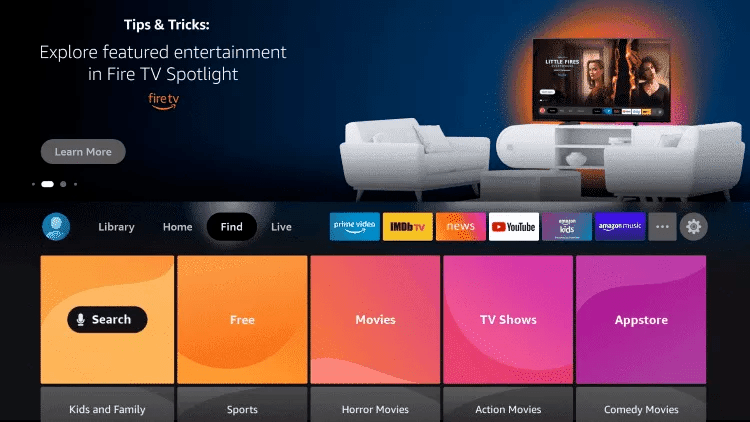
2. Click Search.
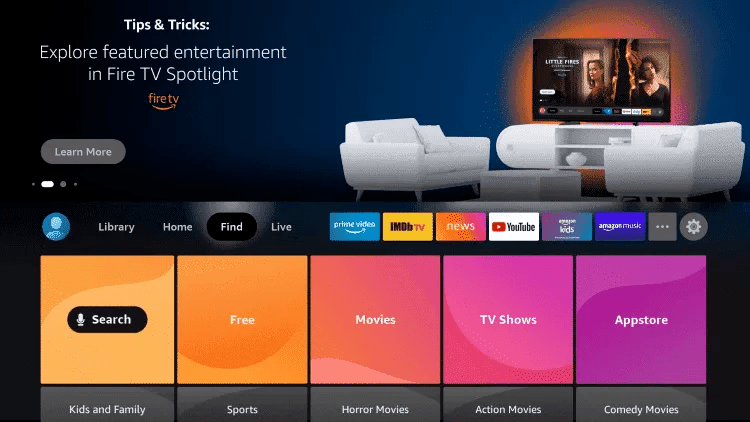
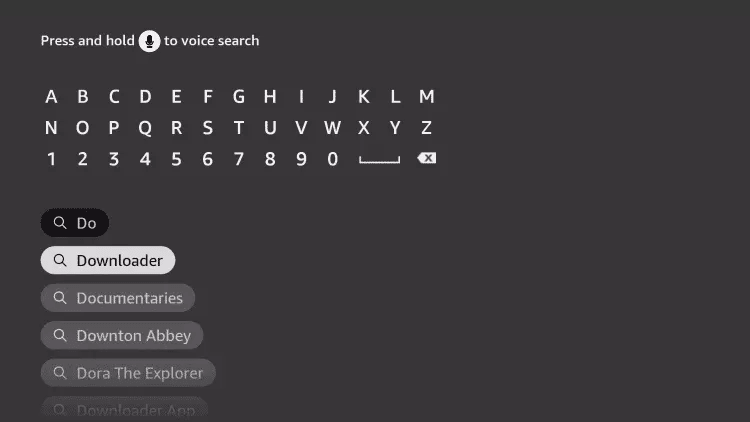
3. Search for and select Downloader.
4. Choose the Downloader app.
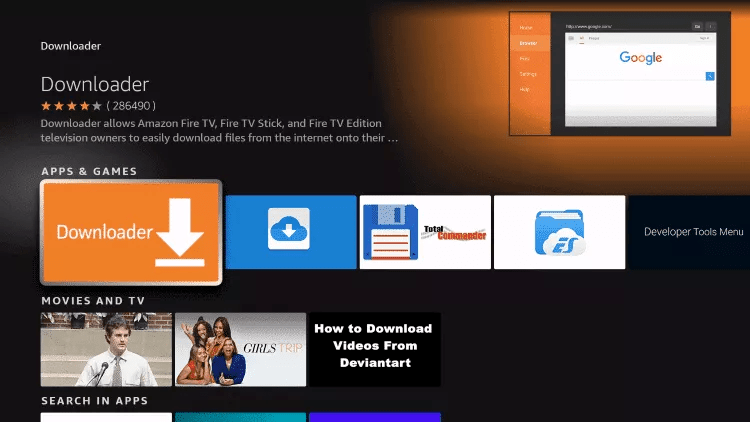
5. Click Download.
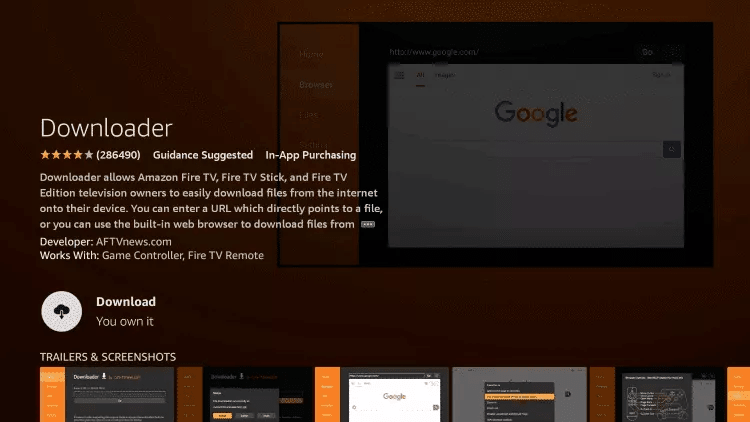
6. Once the app finishes installing click Open.
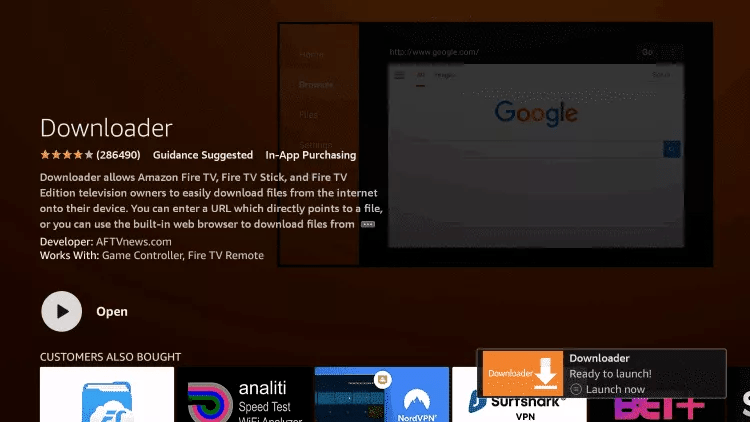
7. Return to the home screen and open Settings.
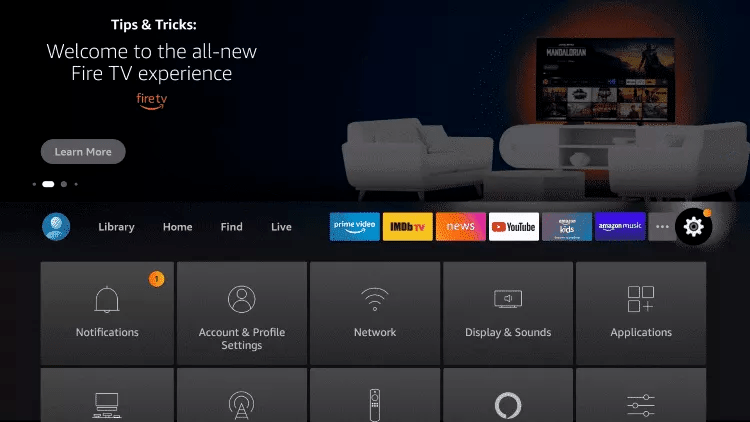
8. Click My Fire TV.

9. Choose Developer options.
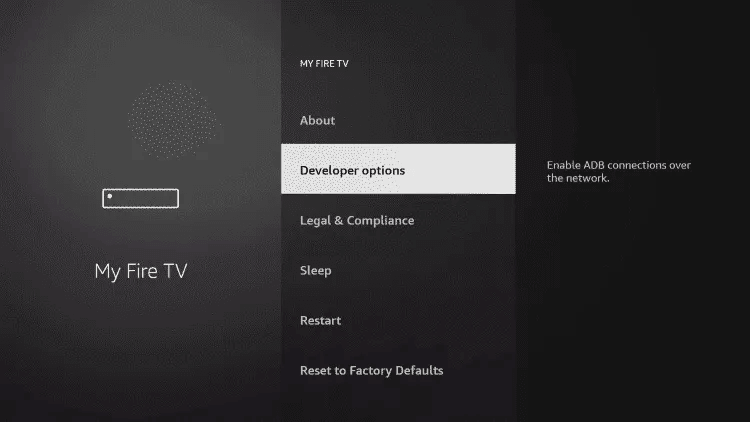
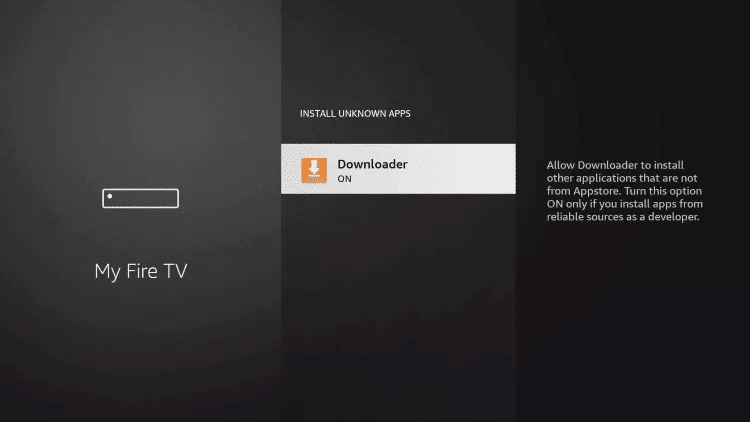
10. Click Install unknown apps.

11. Find the Downloader app and click it.

12. This will turn Unknown Sources to On for the Downloader app. This will enable side-loading on your device.
13. Launch Downloader.
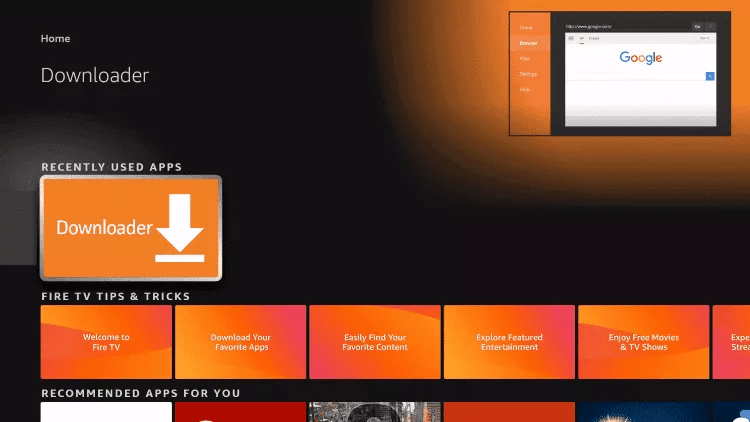
14. Click Allow.

15. Click OK.

16. Type the following URL exactly as shown here: https://www.iptvsmarters.com/smarters.apk
and click Go.

17. Wait for file to download.

18. Click Install.
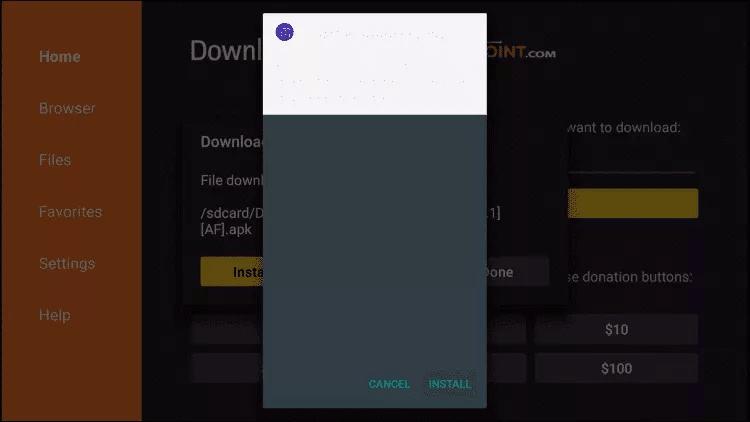
19. Click Done.
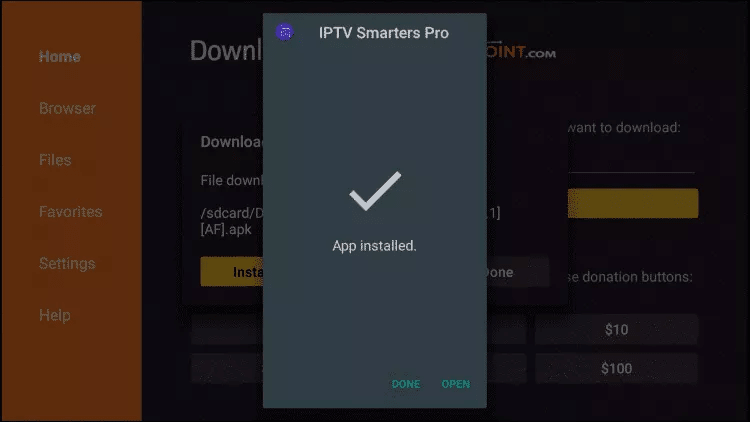
20. Open IPTV smarters then select Login with Xtream codes api.
21. Enter the login details that we sent you via Whatsapp or Email or Chat
FOR TIVIMATE
1. Type the following URL exactly as shown here: https://tivimates.com/tiviapk
and click Go.

2. Wait for file to download.
Wait for the file download to finish
3. Click Install and once the installation is completed. You can open the app.
4. Click “Add Playlist” then choose “Xtream codes“
5. Enter the login details that we sent you via Whatsapp or Email or Chat
How to setup IPTV on TIVIMATE
1. Type the following URL exactly as shown here: https://tivimates.com/tiviapk
and click Go.
2. Wait for file to download.
Wait for the file download to finish
3. Click Install and once the installation is completed. You can open the app.
4. Click “Add Playlist” then choose “Xtream codes“
5. Enter the login details that we sent you via Whatsapp or Email or Chat
How to setup IPTV on Android with IPTV Smarters Player
Step 1: Start by downloading IPTV Smarters app through this URL : https://www.iptvsmarters.com/smarters.apk
Step 2: Open the app once downloaded and Enter the login details.

Step 3: Enter the login details that we have provided you after you get a subscription with us
Now Click on “ADD USER” to proceed to the next section.
Step 4: Wait some seconds.
Step 5: Now click on “Live TV” icon as depicted in the image via a red arrow.
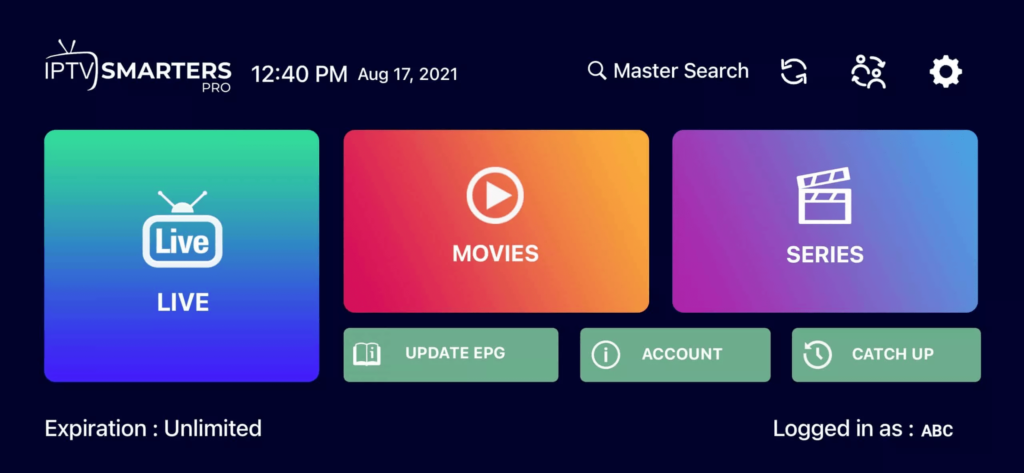
Step 6: Now you must select the channel group that you want to watch and proceed to the next section.
Step 7: Now you must click on the channel name and then double click on the small screen to turn into full screen as the final step.
Done
How To Setup IPTV On Apple/IOS With IPTV Smarters Player
Step 1: Start by downloading IPTV Smarters app from the Apple Store through this URL :
https://apps.apple.com/in/app/smarters-player-lite/id1628995509
or you can search for it on App store
install the app on your IOS device.
Step 2: Open the app once downloaded and Enter the login details.
Step 3: Enter the login details that we have provided you after you get a subscription with us
Now Click on “ADD USER” to proceed to the next section.
Step 4: Wait some seconds.
Step 5: Now click on “Live TV” icon as depicted in the image via a red arrow.
Step 6: Now you must select the channel group that you want to watch and proceed to the next section.
Step 7: Now you must click on the channel name and then double click on the small screen to turn into full screen as the final step.
Step 8: To add EPG no need to add any EPG url, Just click on “Install EPG” .
Done
Far far away, behind the word mountains, far from the countries Vokalia and Consonantia, there live the blind texts. Separated they live in Bookmarksgrove right at the coast
Step 1: You can download SetIPTV / NetIPTV / Smart IPTV from your TV store on Samsung, LG …
Step 2: After the installation, open the app the you will find MAC Address on screen
EX :

Step 3: Send us the MAC address via Whatsapp/Email/Live Chat
Step 4: After few minutes, restart/reboot your TV and Open the app
Done
Windows Method :
Download IPTV Smarters app through this URL : https://www.iptvsmarters.com/download?download=windows
MAC Method :
Download IPTV Smarters app through this URL : https://www.iptvsmarters.com/download?download=mac
Step 1: Send us the MAC Address of your MAG via Whatsapp/Email/Live Chat
Step 2: After making the payment, we will send you the portal link
Installation Guide
Follow our simple, device-by-device tutorials to start streaming PrimaProTV on any screen. No tech skills required.
Works on all your favourite screens
Pick your device below to jump straight to the step-by-step setup guide.
Fire TV Stick
Amazon Fire Stick, Fire TV & Fire Cube using the Downloader app.
View guideTiviMate
The premium TiviMate player for a sleek, EPG-rich experience.
View guideAndroid
Android phones, tablets & Android TV boxes via IPTV Smarters.
View guideiPhone / iPad
iOS & Apple TV using Smarters Player Lite from the App Store.
View guideSmart TV
Samsung, LG & Android-based Smart TVs — no extra box needed.
View guideWindows PC
Windows 10 & 11 desktops and laptops with the Smarters app.
View guideMac
macOS laptops & iMac using the free IPTV Smarters player.
View guideMAG Box
MAG & Formuler set-top boxes via the built-in portal.
View guideVideo tutorials
Prefer to watch? Follow along with our short, easy-to-understand setup videos.
Fire TV Stick Setup
Install PrimaProTV on your Amazon Fire Stick in minutes.
Android & Smart TV Setup
Get streaming on Android phones, boxes and Smart TVs.
iPhone, iPad & Apple TV
Complete iOS installation walkthrough.
Windows & Mac Setup
Watch PrimaProTV on your computer.
Written installation guides
Select a device tab to view the full guide. Each step is clear, short and beginner-friendly.
How to set up PrimaProTV on Fire TV Stick
- From the Fire TV home screen, hover over the Find menu, then select Search.
- Search for Downloader and select the orange Downloader app, then click Download / Get.
- Once installed, return to the home screen and open Settings.
- Go to My Fire TV → Developer Options → Install unknown apps.
- Find Downloader in the list and switch it to ON to allow side-loading.
- Open the Downloader app and click Allow, then OK.
- In the URL field, type exactly:
https://www.iptvsmarters.com/smarters.apkand press Go. - Wait for the download to finish, then click Install, and Done.
- Open IPTV Smarters and choose Login with Xtream Codes API.
- Enter the login details we sent you via WhatsApp, email or live chat. You are ready to stream!
How to set up PrimaProTV on TiviMate
- Install the Downloader app and enable unknown sources (see the Fire TV Stick guide, steps 1–6).
- In Downloader, type the TiviMate URL exactly as provided by our team and press Go.
- Wait for the download to complete, then click Install and open the app.
- Tap Add Playlist, then choose Xtream Codes.
- Enter the login details we sent you via WhatsApp, email or live chat, then save.
How to set up PrimaProTV on Android
- Open the Google Play Store and search for IPTV Smarters Pro.
- Tap Install and wait for the app to download.
- Open the app and accept the terms of use.
- Select Login with Xtream Codes API.
- Enter the username, password and server URL we sent you, then tap Add User.
How to set up PrimaProTV on iPhone / iPad / Apple TV
- Open the App Store and search for Smarters Player Lite.
- Tap Get to install, then open the app.
- Choose Login with Xtream Codes API.
- Enter the login details we provided (username, password and server URL).
- Tap Add User and enjoy your channels.
How to set up PrimaProTV on Smart TV
- From your TV app store (Samsung, LG or Android TV), search for IPTV Smarters or Smarters Player Lite.
- Install and open the app.
- Select Login with Xtream Codes API.
- Enter the login details we sent you, then confirm.
- Your channel list will load automatically — start watching.
How to set up PrimaProTV on Windows PC
- Download the IPTV Smarters Windows app from the official website.
- Run the installer and follow the on-screen prompts.
- Open the app and choose Login with Xtream Codes API.
- Enter the login details we provided and click Add User.
- Browse Live TV, Movies and Series from the dashboard.
How to set up PrimaProTV on Mac
- Open the App Store on your Mac and search for IPTV Smarters.
- Click Get to install, then launch the app.
- Select Login with Xtream Codes API.
- Enter the username, password and server URL we sent you.
- Click Add User to finish setup.
How to set up PrimaProTV on MAG Box
- From the MAG main menu, open Settings → System Settings → Servers → Portals.
- Enter a Portal name (e.g. PrimaProTV) and the portal URL we provided.
- Save your settings and restart the MAG box.
- The box will load your portal automatically.
- Send us your MAG MAC address if you need us to activate your device.
FAQ & troubleshooting
Quick answers to the most common setup questions.
Absolutely. PrimaProTV works on virtually every device and app that supports Xtream Codes or M3U playlists. If you can’t find your device, just contact our support team and we’ll guide you through setup personally.
Your username, password and server URL are sent to you right after purchase via WhatsApp, email or live chat. If you haven’t received them, please contact support.
Double-check that there are no extra spaces and that the server URL is typed exactly as provided. Passwords are case-sensitive. If it still fails, contact support and we’ll verify your account instantly.
Buffering is almost always network-related. Restart your router, use a wired or 5GHz Wi-Fi connection where possible, and close background apps. A minimum speed of 25 Mbps is recommended for HD and 4K streams.
Each subscription runs on one device at a time by default. If you need to watch on multiple screens simultaneously, ask us about our multi-connection plans.
Yes! We offer a free 24-hour test so you can check the quality and channel list on your own device before subscribing. Contact support to request your trial.
Still stuck? We’ve got you.
Our support team is available around the clock. Send us your Xtream Codes login and we’ll get you streaming in minutes.
Ready to start watching?
Join thousands of viewers streaming in crystal-clear HD & 4K today.
